# Unwrap Texture
##  Unwrap Texture
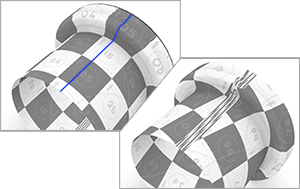
The Unwrap command prompts for selecting edges on the selected object as texture seams where the object's render mesh will be split in UV space.
### Input
* Surface, Polysurface, Extrusion, Mesh, SubD
***
### **Steps**
1. Start the command.
2. Select one or multiple objects, press Enter.
Multiple selected objects will not overlap in UV space.
3. Select a mapping channel.
4. Select edges on the object.
Use the command-line options to help selecting edges.
5. Press Enter when done.
***
### Command-line options
**Chain**\
Chain[ ](https://docs.mcneel.com/rhino/8/help/en-us/commands/selchain.htm)selects the seams.
**Apply**\
Applies the seam selection.
**Edit**\
Opens the UV[ ](https://docs.mcneel.com/rhino/8/help/en-us/properties/texturemapping.htm#UVEditor)Editor.
**Cancel**\
Cancels the command.
**MappingChannel**\
Selects a mapping[ ](https://docs.mcneel.com/rhino/8/help/en-us/properties/texturemapping.htm#Channel)channel number for the UV mesh.
**UnweldedOnly (For mesh-only)**\
Makes only unwelded mesh edges selectable.
**SymmetryTip**\
Defines the symmetrical plane on an object to unwrap the object symmetrically.
**UnweldSeams (Mesh-only)**\
Unwelds the mesh edges along the seams to avoid mapping distortion near the seams. The actual mesh geometry will be modified.
**Method**
**Conformal**\
Uses the Least Squares Conformal map (LSCM) algorithm to flatten 3D objects.
**AngleBased**\
Uses the Angle Based Flattening (ABF++) algorithm to flatten 3D objects.
**AsRigidAsPossible**\
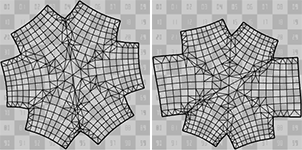
Uses the As-Rigid-As-Possible (ARAP) algorithm to flatten 3D objects. ARAP keeps texture size more even across the object than LSCM and ABF.
***
For more information, please refer to the [Rhino documentation](https://docs.mcneel.com/rhino/8/help/en-us/properties/texturemapping.htm#Unwrap).
---
# Agent Instructions: Querying This Documentation
If you need additional information that is not directly available in this page, you can query the documentation dynamically by asking a question.
Perform an HTTP GET request on the current page URL with the `ask` query parameter:
```
GET https://docs.rhinoartisan.com/rendering/commands/textures/unwrap-texture.md?ask=
```
The question should be specific, self-contained, and written in natural language.
The response will contain a direct answer to the question and relevant excerpts and sources from the documentation.
Use this mechanism when the answer is not explicitly present in the current page, you need clarification or additional context, or you want to retrieve related documentation sections.
Unwrap Texture
The Unwrap command prompts for selecting edges on the selected object as texture seams where the object's render mesh will be split in UV space.
### Input
* Surface, Polysurface, Extrusion, Mesh, SubD
***
### **Steps**
1. Start the command.
2. Select one or multiple objects, press Enter.
Multiple selected objects will not overlap in UV space.
3. Select a mapping channel.
4. Select edges on the object.
Use the command-line options to help selecting edges.
5. Press Enter when done.
***
### Command-line options
**Chain**\
Chain[ ](https://docs.mcneel.com/rhino/8/help/en-us/commands/selchain.htm)selects the seams.
**Apply**\
Applies the seam selection.
**Edit**\
Opens the UV[ ](https://docs.mcneel.com/rhino/8/help/en-us/properties/texturemapping.htm#UVEditor)Editor.
**Cancel**\
Cancels the command.
**MappingChannel**\
Selects a mapping[ ](https://docs.mcneel.com/rhino/8/help/en-us/properties/texturemapping.htm#Channel)channel number for the UV mesh.
**UnweldedOnly (For mesh-only)**\
Makes only unwelded mesh edges selectable.
**SymmetryTip**\
Defines the symmetrical plane on an object to unwrap the object symmetrically.
**UnweldSeams (Mesh-only)**\
Unwelds the mesh edges along the seams to avoid mapping distortion near the seams. The actual mesh geometry will be modified.
**Method**
**Conformal**\
Uses the Least Squares Conformal map (LSCM) algorithm to flatten 3D objects.
**AngleBased**\
Uses the Angle Based Flattening (ABF++) algorithm to flatten 3D objects.
**AsRigidAsPossible**\
Uses the As-Rigid-As-Possible (ARAP) algorithm to flatten 3D objects. ARAP keeps texture size more even across the object than LSCM and ABF.
***
For more information, please refer to the [Rhino documentation](https://docs.mcneel.com/rhino/8/help/en-us/properties/texturemapping.htm#Unwrap).
---
# Agent Instructions: Querying This Documentation
If you need additional information that is not directly available in this page, you can query the documentation dynamically by asking a question.
Perform an HTTP GET request on the current page URL with the `ask` query parameter:
```
GET https://docs.rhinoartisan.com/rendering/commands/textures/unwrap-texture.md?ask=
```
The question should be specific, self-contained, and written in natural language.
The response will contain a direct answer to the question and relevant excerpts and sources from the documentation.
Use this mechanism when the answer is not explicitly present in the current page, you need clarification or additional context, or you want to retrieve related documentation sections.