# Materials
##  Materials
The Materials command opens the Materials panel which specifies the color, finish, transparency, texture, and bump for use by the built-in Rhino renderer.
**Materials panel toolbar**
The Materials panel has additional browsing tools.
**Add material**
Click to select an action to create a new material.
Materials
The Materials command opens the Materials panel which specifies the color, finish, transparency, texture, and bump for use by the built-in Rhino renderer.
**Materials panel toolbar**
The Materials panel has additional browsing tools.
**Add material**
Click to select an action to create a new material.
 **Import from material library**
Imports a material (.rmtl) from the Render Content library folder.
**Import from material library**
Imports a material (.rmtl) from the Render Content library folder.
 **Create Physically Based material from texture files**
Creates a physically based material from image files, or a PBR texture set (.zip).
**Steps**
1. Select one or more image files, or a PBR texture set (.zip).
Free or paid PBR texture sets can be [downloaded](https://www.google.com/search?q=PBR+material+download) from the Internet.
2. In the [Texture Selection](https://docs.mcneel.com/rhino/8/help/en-us/information/pbr_texture_selection.htm) dialog, set the material name, texture assignment, texture mapping, and units.
**Create Physically Based material from texture files**
Creates a physically based material from image files, or a PBR texture set (.zip).
**Steps**
1. Select one or more image files, or a PBR texture set (.zip).
Free or paid PBR texture sets can be [downloaded](https://www.google.com/search?q=PBR+material+download) from the Internet.
2. In the [Texture Selection](https://docs.mcneel.com/rhino/8/help/en-us/information/pbr_texture_selection.htm) dialog, set the material name, texture assignment, texture mapping, and units.
 **Choose existing**
Creates a new material by using an existing material as the template.
**Choose existing**
Creates a new material by using an existing material as the template.
 **Blend**
Creates a new [blend](https://docs.mcneel.com/rhino/8/help/en-us/commands/materials.htm#blend_panel) material.
**Blend**
Creates a new [blend](https://docs.mcneel.com/rhino/8/help/en-us/commands/materials.htm#blend_panel) material.
 **Custom**
Creates a new [custom](https://docs.mcneel.com/rhino/8/help/en-us/commands/materials.htm#custom) material.
Custom materials have all possible settings available in the editor.
**Custom**
Creates a new [custom](https://docs.mcneel.com/rhino/8/help/en-us/commands/materials.htm#custom) material.
Custom materials have all possible settings available in the editor.
 **Double Sided**
Creates a new [double sided](https://docs.mcneel.com/rhino/8/help/en-us/commands/materials.htm#doublesided_panel) material.
**Double Sided**
Creates a new [double sided](https://docs.mcneel.com/rhino/8/help/en-us/commands/materials.htm#doublesided_panel) material.
 **Emission**
Creates a new [emission](https://docs.mcneel.com/rhino/8/help/en-us/commands/materials.htm#emission_panel) material.
**Emission**
Creates a new [emission](https://docs.mcneel.com/rhino/8/help/en-us/commands/materials.htm#emission_panel) material.
 **Gem**
Creates a new [gem](https://docs.mcneel.com/rhino/8/help/en-us/commands/materials.htm#gem_panel) material.
**Gem**
Creates a new [gem](https://docs.mcneel.com/rhino/8/help/en-us/commands/materials.htm#gem_panel) material.
 **Glass**
Creates a new [glass](https://docs.mcneel.com/rhino/8/help/en-us/commands/materials.htm#glass_panel) material.
**Glass**
Creates a new [glass](https://docs.mcneel.com/rhino/8/help/en-us/commands/materials.htm#glass_panel) material.
 **Metal**
Creates a new [metal](https://docs.mcneel.com/rhino/8/help/en-us/commands/materials.htm#metal_panel) material.
**Metal**
Creates a new [metal](https://docs.mcneel.com/rhino/8/help/en-us/commands/materials.htm#metal_panel) material.
 **Paint**
Creates a new [paint](https://docs.mcneel.com/rhino/8/help/en-us/commands/materials.htm#paint_panel) material.
**Paint**
Creates a new [paint](https://docs.mcneel.com/rhino/8/help/en-us/commands/materials.htm#paint_panel) material.
 **Physically Based**
Creates a new [physically based](https://docs.mcneel.com/rhino/8/help/en-us/commands/materials.htm#physicallybased) material.
**Physically Based**
Creates a new [physically based](https://docs.mcneel.com/rhino/8/help/en-us/commands/materials.htm#physicallybased) material.
 **Picture**
Creates a new [picture](https://docs.mcneel.com/rhino/8/help/en-us/commands/materials.htm#picture_panel) material.
**Picture**
Creates a new [picture](https://docs.mcneel.com/rhino/8/help/en-us/commands/materials.htm#picture_panel) material.
 **Plaster**
Creates a new [plaster](https://docs.mcneel.com/rhino/8/help/en-us/commands/materials.htm#plaster_panel) material.
**Plaster**
Creates a new [plaster](https://docs.mcneel.com/rhino/8/help/en-us/commands/materials.htm#plaster_panel) material.
 **Plastic**
Creates a new [plastic](https://docs.mcneel.com/rhino/8/help/en-us/commands/materials.htm#plastic_panel) material.
**Plastic**
Creates a new [plastic](https://docs.mcneel.com/rhino/8/help/en-us/commands/materials.htm#plastic_panel) material.
 **More types...**
Creates a new material from the [Material Type Browser](https://docs.mcneel.com/rhino/8/help/en-us/information/contenttypebrowser_materials.htm) dialog.
**More types...**
Creates a new material from the [Material Type Browser](https://docs.mcneel.com/rhino/8/help/en-us/information/contenttypebrowser_materials.htm) dialog.
 **Search**
* Click the search box (magnifying glass) to display a menu for searching names, notes, or tags.
**Search**
* Click the search box (magnifying glass) to display a menu for searching names, notes, or tags.
 **Search Names**
Limits the search to names.
**Search Names**
Limits the search to names.
 **Search Notes**
Limits the search to notes.
**Search Notes**
Limits the search to notes.
 **Search Tags**
Limits the search to tags.
* When tags: is selected, a list of available tags appears. These tags are gathered from the materials, environments, and textures in the document.
* In the tags list, arrow keys move up and down and the selected tag is appended to the search.
* Type a semicolon to keep the selected tag and append a semicolon to the search.
* Backspace removes the last tag from the search.
* Once the focus is on the tags list, you can navigate the list using the keyboard with the semicolon and backspace keys appending and removing tags from the search without having to use the mouse.
**Thumbnail indicators**
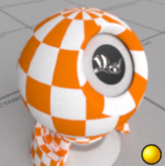
The icons at the lower-right corner of a material thumbnail indicate the status of the material.
**Search Tags**
Limits the search to tags.
* When tags: is selected, a list of available tags appears. These tags are gathered from the materials, environments, and textures in the document.
* In the tags list, arrow keys move up and down and the selected tag is appended to the search.
* Type a semicolon to keep the selected tag and append a semicolon to the search.
* Backspace removes the last tag from the search.
* Once the focus is on the tags list, you can navigate the list using the keyboard with the semicolon and backspace keys appending and removing tags from the search without having to use the mouse.
**Thumbnail indicators**
The icons at the lower-right corner of a material thumbnail indicate the status of the material.

 The material is used by objects not in selection.
 The material is used by objects in selection.
 At least one external image used by the material is missing.
* Pointing the mouse cursor to the icon shows information about the missing images.
* If any missing image is detected when Rhino opens a model, the [Missing image files](https://docs.mcneel.com/rhino/8/help/en-us/commands/renderreportimagefiles.htm) dialog appears.
* The [Save textures](https://docs.mcneel.com/rhino/8/help/en-us/commands/save.htm#SaveTextures) option in the [Save](https://docs.mcneel.com/rhino/8/help/en-us/commands/save.htm) dialog stores images in the 3dm file to prevent images from missing.
---
# Agent Instructions: Querying This Documentation
If you need additional information that is not directly available in this page, you can query the documentation dynamically by asking a question.
Perform an HTTP GET request on the current page URL with the `ask` query parameter:
```
GET https://docs.rhinoartisan.com/rendering/commands/panels/materials.md?ask=
```
The question should be specific, self-contained, and written in natural language.
The response will contain a direct answer to the question and relevant excerpts and sources from the documentation.
Use this mechanism when the answer is not explicitly present in the current page, you need clarification or additional context, or you want to retrieve related documentation sections.
At least one external image used by the material is missing.
* Pointing the mouse cursor to the icon shows information about the missing images.
* If any missing image is detected when Rhino opens a model, the [Missing image files](https://docs.mcneel.com/rhino/8/help/en-us/commands/renderreportimagefiles.htm) dialog appears.
* The [Save textures](https://docs.mcneel.com/rhino/8/help/en-us/commands/save.htm#SaveTextures) option in the [Save](https://docs.mcneel.com/rhino/8/help/en-us/commands/save.htm) dialog stores images in the 3dm file to prevent images from missing.
---
# Agent Instructions: Querying This Documentation
If you need additional information that is not directly available in this page, you can query the documentation dynamically by asking a question.
Perform an HTTP GET request on the current page URL with the `ask` query parameter:
```
GET https://docs.rhinoartisan.com/rendering/commands/panels/materials.md?ask=
```
The question should be specific, self-contained, and written in natural language.
The response will contain a direct answer to the question and relevant excerpts and sources from the documentation.
Use this mechanism when the answer is not explicitly present in the current page, you need clarification or additional context, or you want to retrieve related documentation sections.