# 2. Set RhinoArtisan Get License from Cloud Zoo

{% hint style="info" %}
This documentation assumes you have set up your Cloud Zoo with your Rhino licenses. If you haven’t done so, please refer to the [Cloud Zoo Licensing Setup link](https://www.rhino3d.com/features/administration/licensing/).
{% endhint %}

In RhinoArtisan, in the "File" tab, click on "Settings".

<figure><img src="https://3375153115-files.gitbook.io/~/files/v0/b/gitbook-x-prod.appspot.com/o/spaces%2F5uhW8FwQpXQj8tHUULMo%2Fuploads%2FBtsw1ugoxWbpJbG2QPKO%2Fimage.png?alt=media&#x26;token=14634989-f16b-40ac-af58-c9038649fef1" alt=""><figcaption></figcaption></figure>

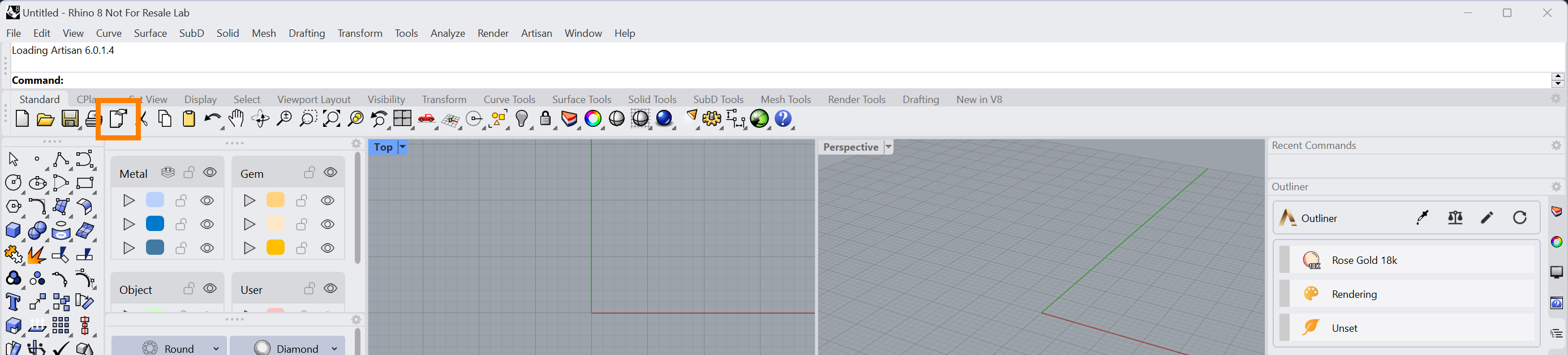
If you use RhinoArtisan within Rhino, click on the **Options** icon or type the **Options** command.

<figure><img src="https://3375153115-files.gitbook.io/~/files/v0/b/gitbook-x-prod.appspot.com/o/spaces%2F5uhW8FwQpXQj8tHUULMo%2Fuploads%2F6J11XyFi9hmZICshKTO1%2Fimage.png?alt=media&#x26;token=18f1cbb3-3c0d-49ec-ae80-53684cfac3c4" alt=""><figcaption></figcaption></figure>

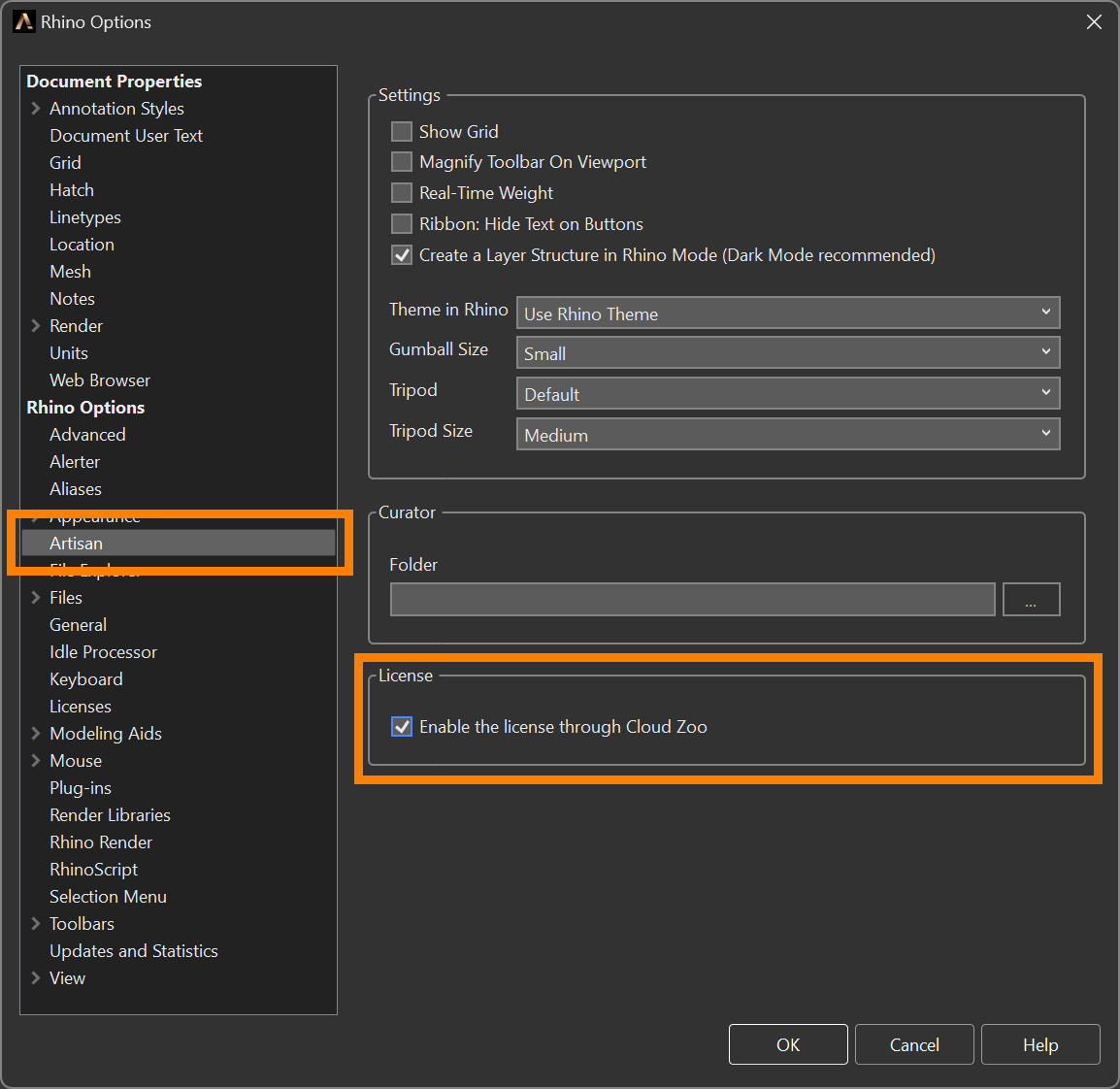
The Rhino options will appear; select **Artisan** from the list, then check the option to **Enable the license through Cloud Zoo,** and click on the OK button.

<figure><img src="https://3375153115-files.gitbook.io/~/files/v0/b/gitbook-x-prod.appspot.com/o/spaces%2F5uhW8FwQpXQj8tHUULMo%2Fuploads%2FFVVC04LjEgnVJJeWIb77%2Fimage.png?alt=media&#x26;token=a8210707-d049-48b8-8b06-5eb0db8633b5" alt=""><figcaption></figcaption></figure>

{% hint style="info" %}
Does the license option not appear? Then, you need to download a new version at [www.rhinoartisan.com/dashboard/download](http://www.rhinoartisan.com/dashboard/download).
{% endhint %}

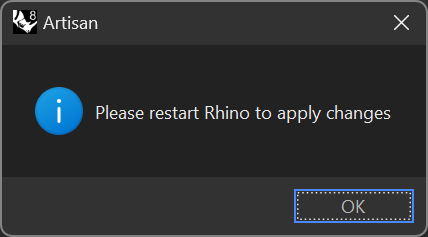
It will ask us to close RhinoArtisan (or Rhino).

<figure><img src="https://3375153115-files.gitbook.io/~/files/v0/b/gitbook-x-prod.appspot.com/o/spaces%2F5uhW8FwQpXQj8tHUULMo%2Fuploads%2FppVQYVQbqW3OlE20B27x%2Fimage.png?alt=media&#x26;token=5f1081c8-8691-43db-b5e7-563a8e07a0c2" alt=""><figcaption></figcaption></figure>